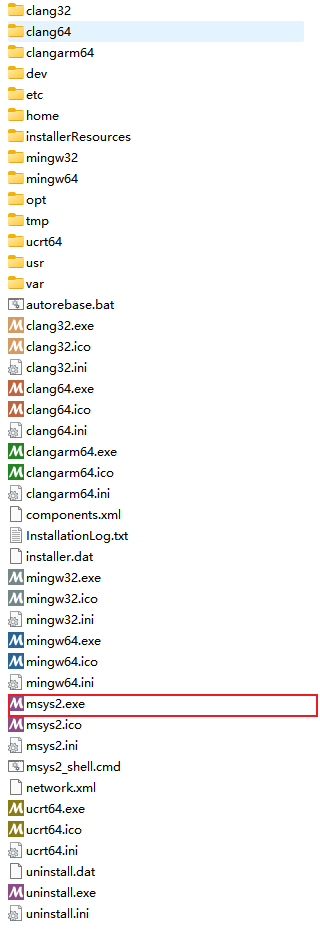
安装之后,在msys的terminal中执行,可以去安装目录下寻找
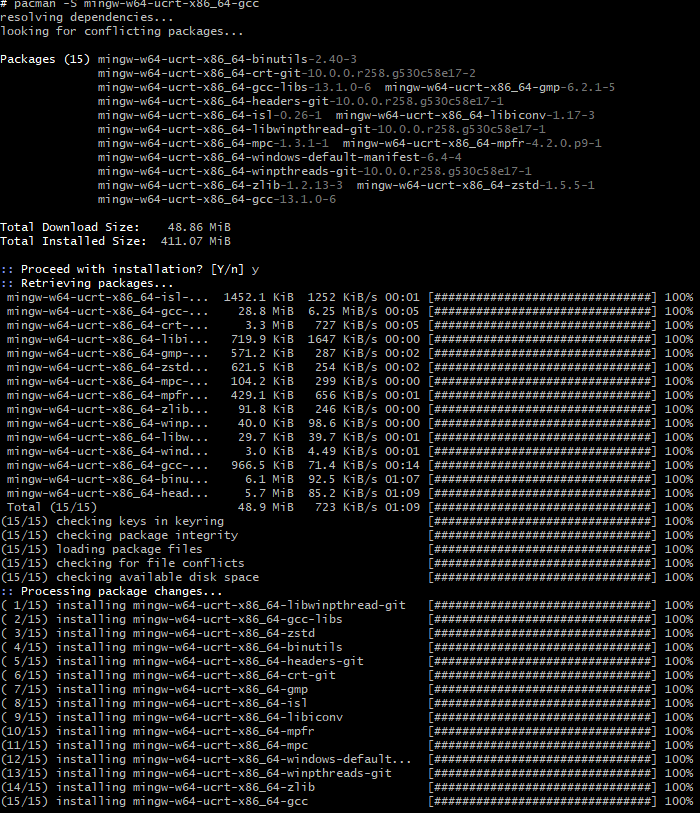
>pacman -S mingw-w64-ucrt-x86_64-gcc

Get Started with C++ and Mingw-w64 in Visual Studio Code
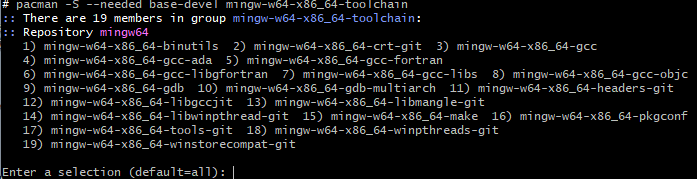
>pacman -S --needed base-devel mingw-w64-x86_64-toolchain
选择默认参数(直接回车即可),会执行一系列的安装
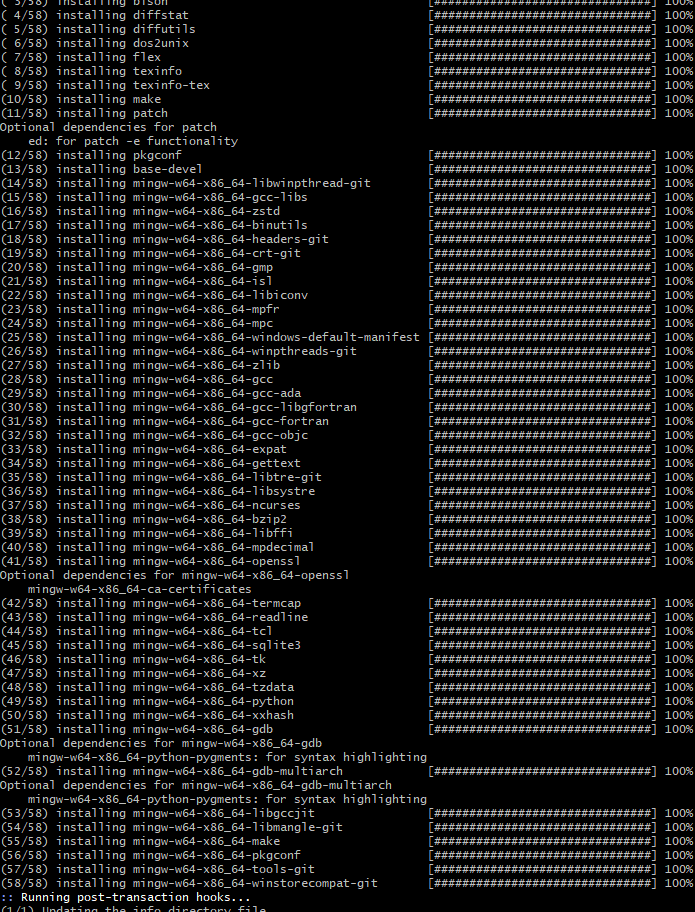
会执行一系列的安装,比如
Install the Mingw-w64 toolchain (pacman -S --needed base-devel mingw-w64-x86_64-toolchain). Run the pacman command in a MSYS2 terminal. Accept the default to install all the members in the toolchain group.
-
Add the path to your Mingw-w64
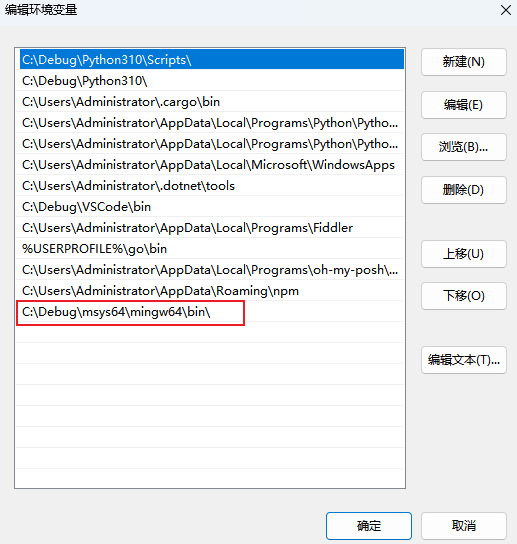
binfolder to the WindowsPATHenvironment variable by using the following steps:- In the Windows search bar, type 'settings' to open your Windows Settings.
- Search for Edit environment variables for your account.
- Choose the
Pathvariable in your User variables and then select Edit. - Select New and add the Mingw-w64 destination folder path to the system path. The exact path depends on which version of Mingw-w64 you have installed and where you installed it. If you used the settings above to install Mingw-w64, then add this to the path:
C:\msys64\mingw64\bin. - Select OK to save the updated PATH. You will need to reopen any console windows for the new PATH location to be available.
-
Check your MinGW installation
To check that your Mingw-w64 tools are correctly installed and available, open a new Command Prompt and type:
gcc --version
g++ --version
gdb --version

重启后,在cmd的terminal中

在powershell中

but in mysys2 terminal
