前端时间用electron+ffmpeg开发了一个视频压缩软件,然后越熟悉ffmpeg越觉得它的牛叉,以前觉得视频处理需要高深莫测的技术,ffmpeg为我解开了视频处理的神秘面纱。然后决定做一个视频处理的工具,包括视频压缩、视频剪切、视频合并、视频格式转换、视频添加水印,先上效果图。
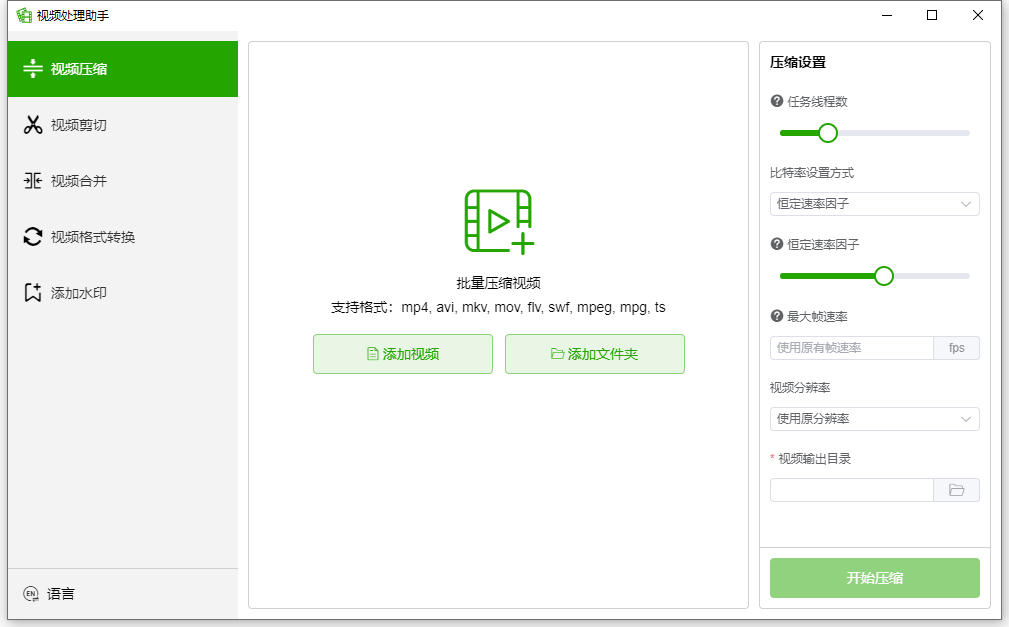
上一篇文章介绍的用electron做的视频压缩软件,没有用到前端框架,若遇到开发多页面时就比较头痛。个人对vue还比较熟悉,就想着用electron+vue3来开发,UI就用element-plus,还有electron-builder打包工具,然后就上网查资料学习,学习中遇到各种坑,网上资料有的很老,有的不会把遇到的问题都写出来,我先把遇到的坑和怕坑方法分享给大家。
一、Electron+vue 填坑之旅
1、由于electron-builder、webpack等更新和打包问题,nodejs版本不能用最新的,需要用v16,下载地址:https://nodejs.org/en/blog/release/v16.13.0
2、创建vue项目不要用vue官网教程里面的命令,要用 vue create project-name,命令执行后选择vue3版本。
3、使用electron-builder集成electron,执行命令:vue add electron-builder,命令执行后选择版本环节时选择13.0.0
4、运行命令 npm run electron:serve,这时若无意外能跑起来,若要在项目中用到 require 方式引入模块会报错,需要修改src/background.js代码

5、打包命令 npm run electron:build,不出意外有可能会出意外,打包中途会从github上下载electron文件,若github此时刚好不能访问就会下载失败。
解决方法:
①随时观察github访问情况,若能访问了,赶快试着打包 -_-!
②受不了方法一的,复制错误提示中的github地址创造条件到github上手动把这些文件下载下来,然后放到本地应用程序缓存目录,我的具体地址如下:C:\Users\admin\AppData\Local\electron\Cache
6、配置应用程序窗口标题栏图标
创建一个resources文件夹,放入logo图片
7、配置打包信息和打包图标
修改vue.config.js


const { defineConfig } = require('@vue/cli-service')
const webpack = require('webpack');
module.exports = defineConfig({
  runtimeCompiler: true,
  transpileDependencies: true,
  pluginOptions: {
    electronBuilder: {
      nodeIntegration: true,
      webSecurity: false,
      builderOptions: {
        productName: `Video Processing Assistant`,
        appId: 'com.world0101.videoprocessingassistant',
        asar: true,
        linux: {
          target: ['deb'],
          category: 'Utility',
          icon: './resources/icons/icon'
        },
        mac: {
          icon: './resources/icons/icon.icns'
        },
        win: {
          target: [{
            target: 'nsis'
          }],
          icon: './resources/icons/icon.ico'
        },
        nsis: {
          oneClick: false,
          allowToChangeInstallationDirectory: true,
          perMachine: true,
          allowElevation: true,
          runAfterFinish: true,
          createDesktopShortcut: true,
          createStartMenuShortcut: true,
          deleteAppDataOnUninstall: true,
        },
        extraResources: {
          // 拷贝静态文件到指定位置,否则打包之后出现找不到资源的问题.将整个resources目录拷贝到发布的根目录下
          // 获取静态资源路径方式:process.env.NODE_ENV !== 'production'?'./resources/xxx':process.resourcesPath + '/xxx'
          from: './resources/',
          to: './'
        }
      }
    }
  },
  configureWebpack: {
    plugins: [
      //运行时fluent-ffmpeg报错解决方案
      new webpack.DefinePlugin({
        'process.env.FLUENTFFMPEG_COV': false
      })
    ]
  }
})
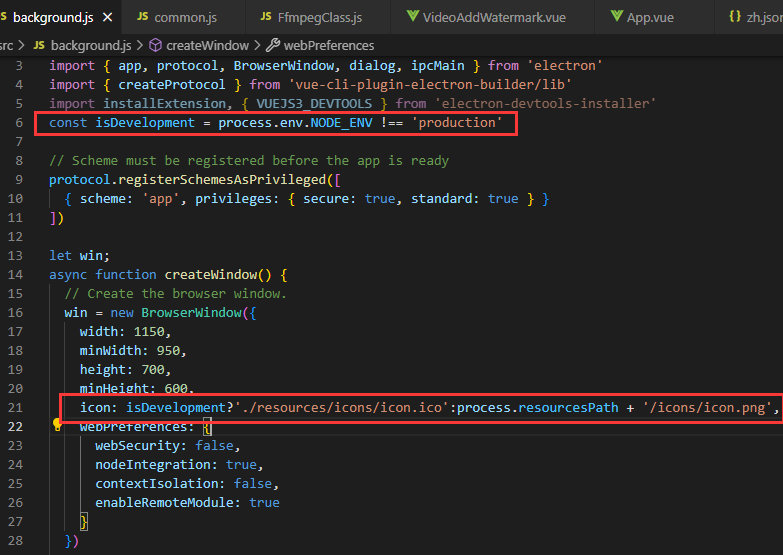
8、把background.js中下面代码注释掉,不然开发中每次启动特慢

二、ffmpeg使用
1、到ffmpeg官网(ffmpeg.org)下载对应系统dll,或者从网盘下载:https://www.123pan.com/s/DTR6Vv-jnIO3.html
然后放入respurces,比如我windows版本如下

2、引入fluent-ffmepg包,npm install fluent-ffmpeg
3、创建一个ffmpeg帮助类
const os = require('os');
const path = require('path');
const ffmpeg = require('fluent-ffmpeg');

module.exports = class FfmpegClass {
    constructor() {
        this._ffmpegBinPath;
        this._cutVideoCommand;
        this._mergeVideoCommand;
        this._compressVideoCommandArr;
        this._videoFormatConvertCommandArr;
        this._videoAddWatermarkCommandArr;

        this.setFfmpegPath();
    }

    setFfmpegPath() {
        const platform = os.platform()
        const arch = os.arch()
        const basePath = path.resolve(
            process.env.NODE_ENV !== 'production'?'./resources/bin':process.resourcesPath + '/bin',
            platform,
            // arm64 is limit supported only for macOS
            platform === 'darwin' && arch === 'arm64'
            ? 'arm64'
            : 'x64',
        )
        var name='ffmpeg';
        this._ffmpegBinPath = path.resolve(
            basePath,
            platform === 'win32' ? `${name}.exe` : name,
        )
        .replace(/\\/g,"/")
        .replace('/src/js/bin/','/bin/');
        ffmpeg.setFfmpegPath(this._ffmpegBinPath);
    }

    //获取媒体信息
    getVideoOrAudioMetaData(videoPath,callback){
        ffmpeg(videoPath).ffprobe((err, data) => {
            //console.log(err)
            if(err==null && callback!=null){
                callback(data);
            }
        });
    }

    //压缩视频
    compressVideo(input, output, opts, progressCallback,endCallback,errorCallback){
        try{
            var ffmpegCommand = ffmpeg(input)
            if(opts.frameRate!=null){
                ffmpegCommand = ffmpegCommand.fps(opts.frameRate);
            }
            if(opts.videoWidth!=null && opts.videoHeight!=null){
                ffmpegCommand=ffmpegCommand
                .size(opts.videoWidth+'x'+opts.videoHeight)
                .autopad();
            }
            if(opts.crf!=null){
                ffmpegCommand=ffmpegCommand.outputOptions('-crf '+opts.crf);
            }
            if(opts.bitRate!=null){
                ffmpegCommand=ffmpegCommand.outputOptions(['-b:v',opts.bitRate+'k']);
            }
            ffmpegCommand = ffmpegCommand
                .on('start', function (commandLine) {
                    console.log('Spawned Ffmpeg with command: ' + commandLine);
                })
                .on('progress', function (progress) {
                    if(progressCallback!=null){
                        progressCallback(progress);
                    }
                })
                .on('end', function (stdout, stderr) {
                    if(endCallback!=null){
                        endCallback();
                    }
                })
                .on('error', function (err, stdout, stderr) {
                    if(errorCallback!=null){
                        errorCallback();
                    }
                })
                .save(output);

            if(this._compressVideoCommandArr==null)
                this._compressVideoCommandArr=[];
            this._compressVideoCommandArr.push(ffmpegCommand);
        }catch(e){
            console.log(e);
            if(errorCallback!=null){
                errorCallback();
            }
        }
    }

    //停止压缩
    killCompressVideoCommand(){
        for(var i=this._compressVideoCommandArr.length-1;i>=0;i--){
            this._compressVideoCommandArr[i].kill();
            this._compressVideoCommandArr.splice(i,1);
        }
    }
}
其他就是UI方面的了。