一、创建项目
uni-app 是一个使用 Vue.js 开发所有前端应用的框架,开发者编写一套代码,可发布到iOS、Android、Web(响应式)、以及各种小程序(微信/支付宝/百度/头条/飞书/QQ/快手/钉钉/淘宝)、快应用等多个平台。
uni-app在手,做啥都不愁。即使不跨端,uni-app也是更好的小程序开发框架(详见)、更好的App跨平台框架、更方便的H5开发框架。不管领导安排什么样的项目,你都可以快速交付,不需要转换开发思维、不需要更改开发习
1、创建新项目配置初始化
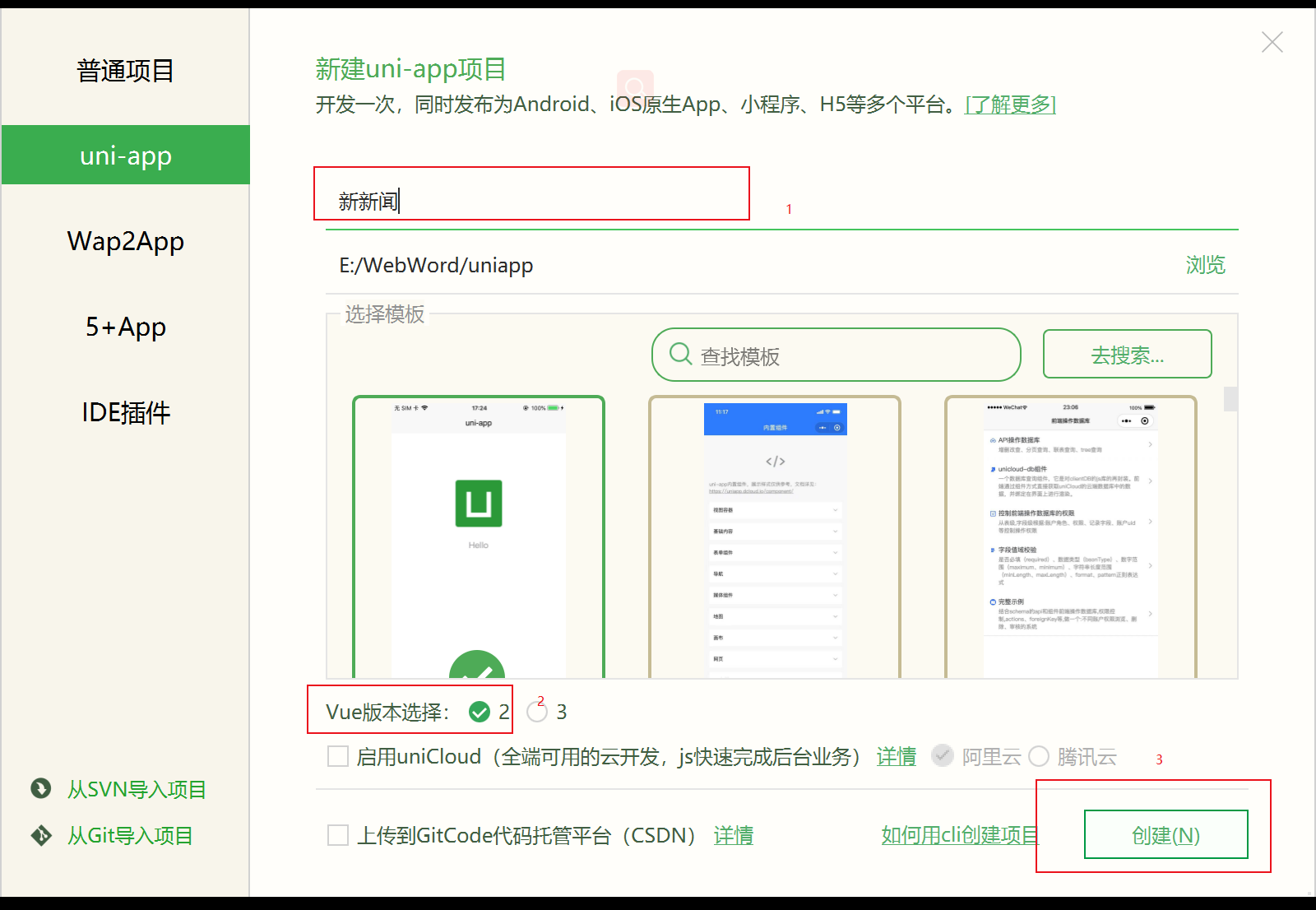
1.1、创建一个项目,项目名称为新新闻,自己做案例的时候可以使用随便起名
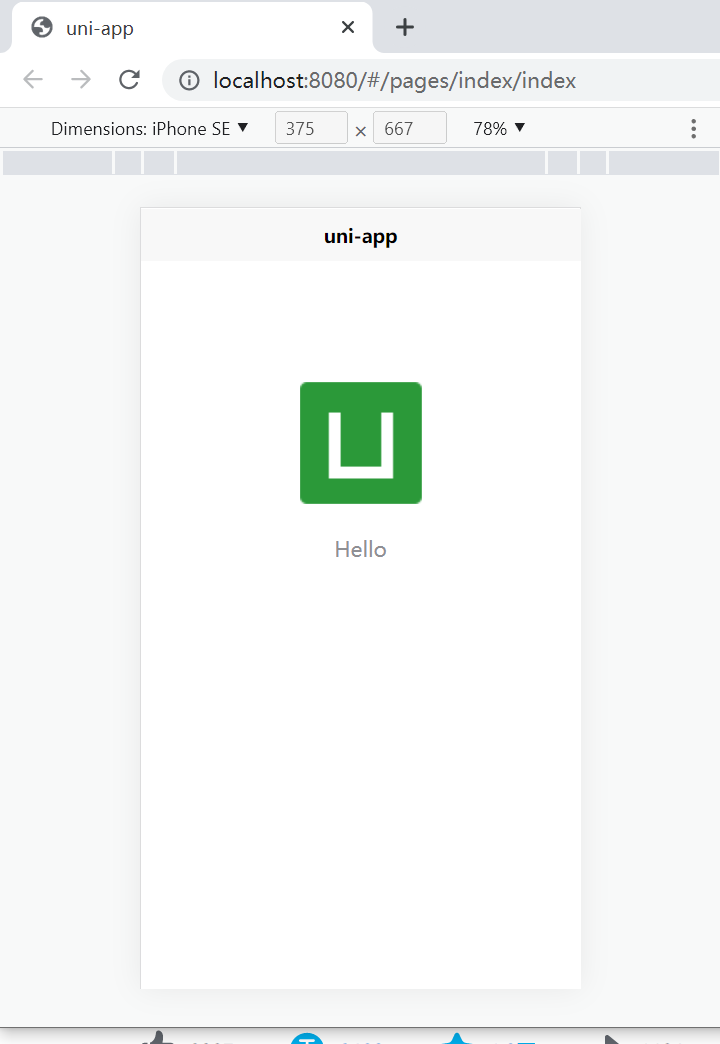
运行结果
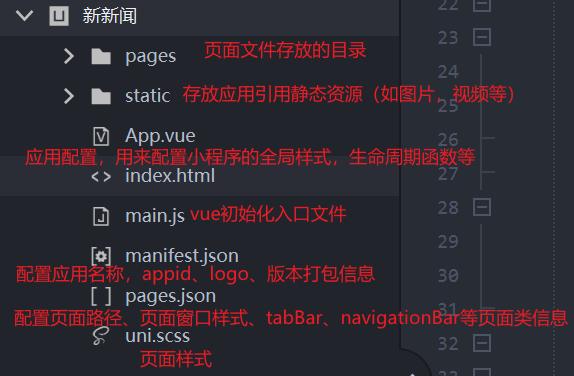
1.2、项目文件
1.3、在page文件下创建一个user页面
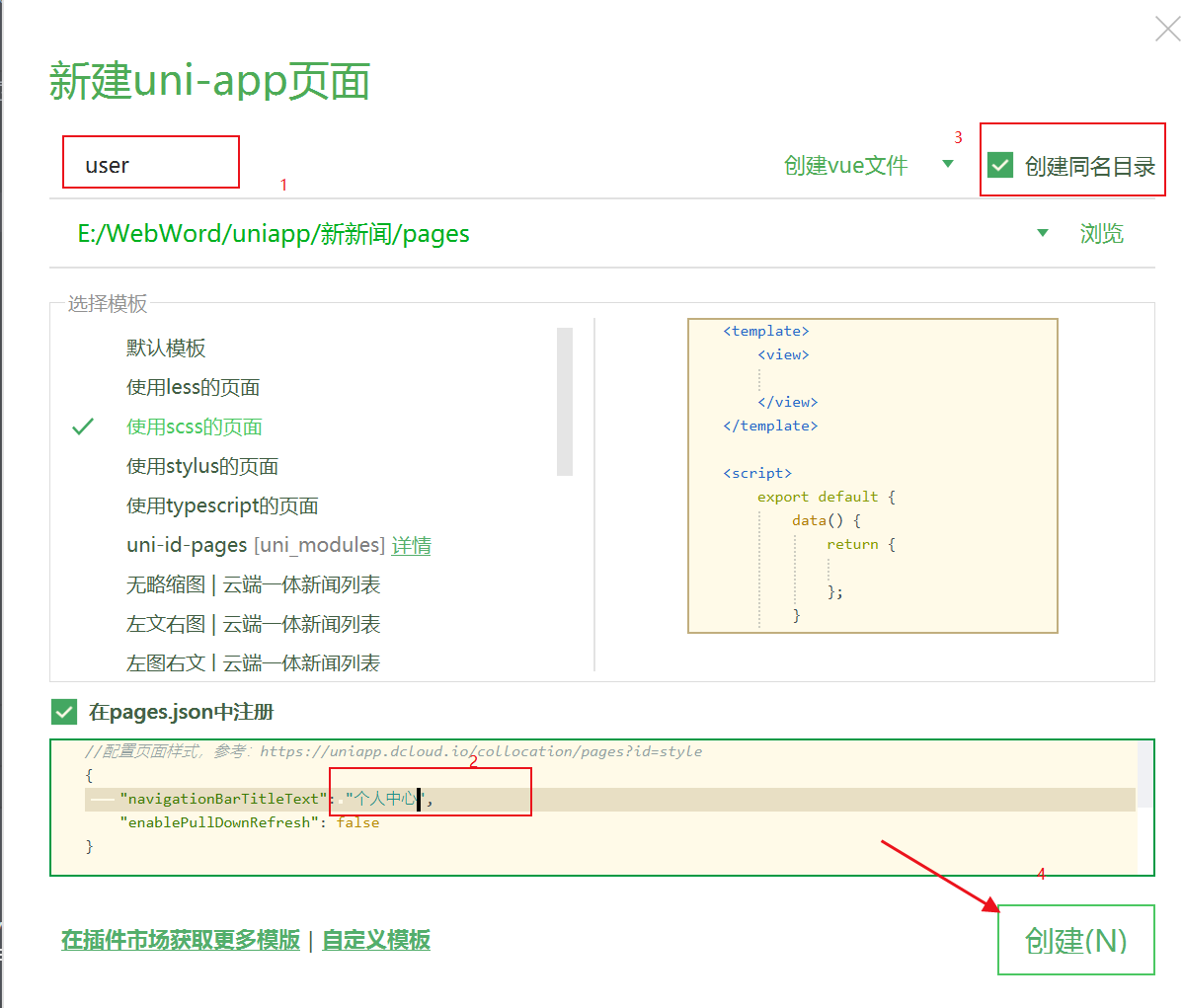
1.4、在pages.json中配置内容
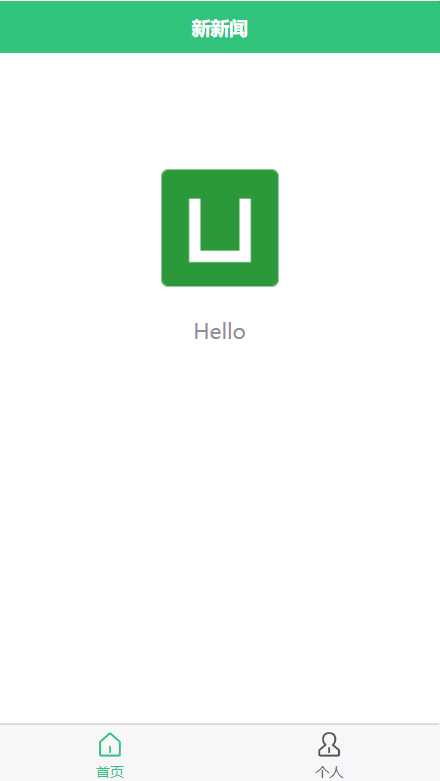
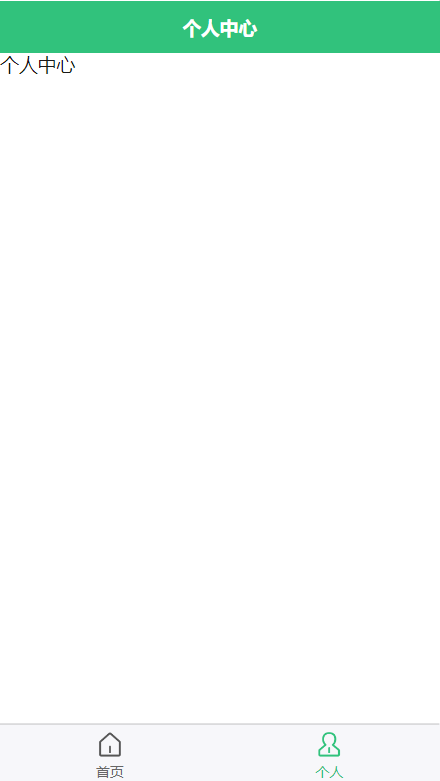
添加一个tabBar,图标在inconfont可免费下载


{
    "pages": [ //pages数组中第一项表示应用启动页,参考:https://uniapp.dcloud.io/collocation/pages
        {
            "path": "pages/index/index",
            "style": {
                "navigationBarTitleText": "新新闻"
            }
        }
        ,{
            "path" : "pages/user/user",
            "style" :
            {
                "navigationBarTitleText": "个人中心",
                "enablePullDownRefresh": false
            }

        }
    ],
    // 全局配置
    "globalStyle": {
        // 有比较亮的背景颜色尽量搭配白色文字
        "navigationBarTextStyle": "white",
        "navigationBarTitleText": "新新闻",
        "navigationBarBackgroundColor": "#31C27C",
        "backgroundColor": "#F8F8F8"
    },
    "uniIdRouter": {},
    // 底部导航,路由跳转
    "tabBar": {
        // 颜色,选中颜色,尽量选择跟图标一样的颜色
        "color": "#666",
        "selectedColor": "#31C27C",
        "list":[
            {
                // 头部标题
                "text": "首页",
                // 路径
                "pagePath": "pages/index/index",
                // 底部图标
                "iconPath": "static/images/home.png",
                // 底部选中图标
                "selectedIconPath": "static/images/home-h.png"
            },
            {
                "text": "个人",
                "pagePath": "pages/user/user",
                "iconPath": "static/images/user.png",
                "selectedIconPath": "static/images/user-h.png"
            }
        ]


    }
}
配置后效果如下
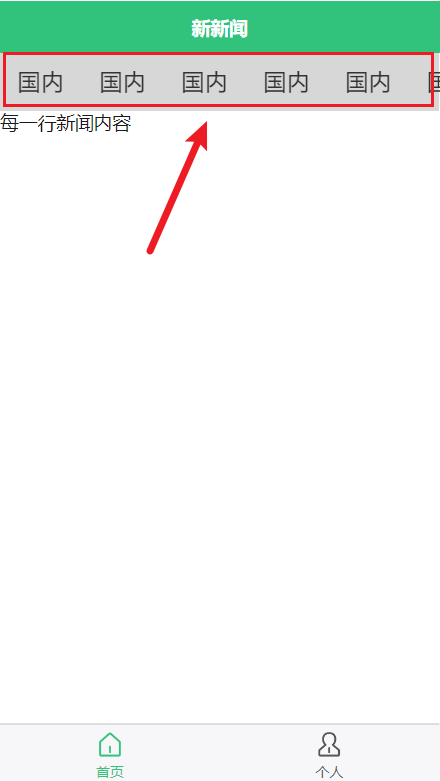
2、实现横向滚动条样式
2.1、index/index.vue
<template>
    <!-- 给一个大的盒子 -->
    <view class="home">
        <!--导航栏 可滚动视图区域 scroll-x允许横向-->
        <scroll-view scroll-x class="navscroll">
            <view class="item" v-for="item in 8">国内</view>

        </scroll-view>
        <!-- 内容 -->
        <view class="row">每一行新闻内容</view>
    </view>
</template>

<script>
    export default {
        data() {
            return {
                title: 'Hello'
            }
        },
        onLoad() {

        },
        methods: {

        }
    }
</script>

<style lang="scss" scoped>
    .navscroll{
        height: 100rpx;
        background: #d7d7d7;
        // 显示这个导航不换行
        white-space: nowrap;
        // 这个是给导航滑块的给隐藏,虽然小程序没有显示,但是h5会出现
        /deep/ ::-webkit-scrollbar {
            width: 4px !important;
            height: 1px !important;
            overflow: auto !important;
            background: transparent !important;
            -webkit-appearance: auto !important;
            display: block;
        }
        .item{
            font-size:40rpx;
            // 显示一行
            display: inline-block;
            line-height: 100rpx;
            padding: 0 30rpx;
            color: #333;
        }
    }
</style>
3、公共模块定义components
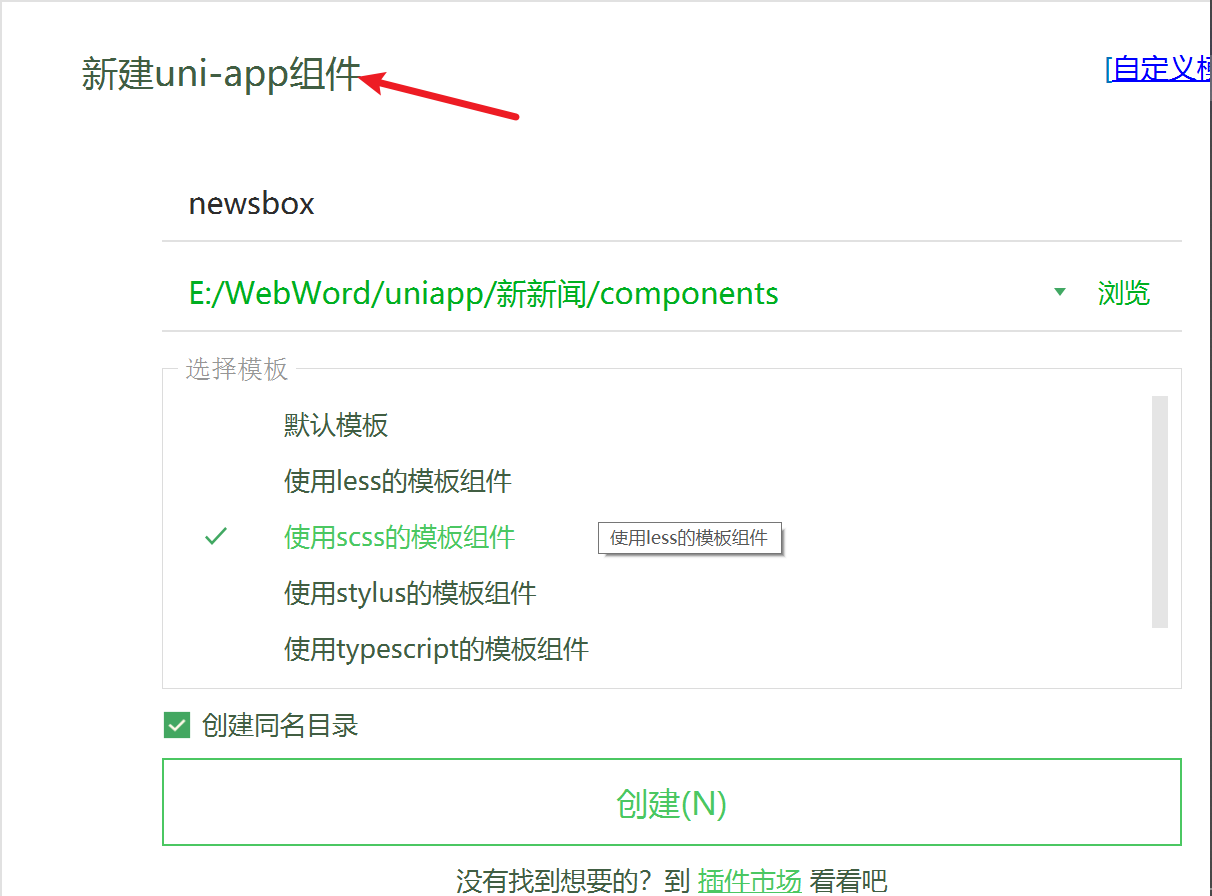
3.1、创建组件components
3.2、编写样式
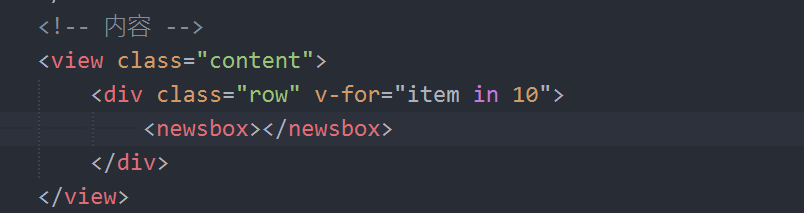
把组件newsbox引入index.vue
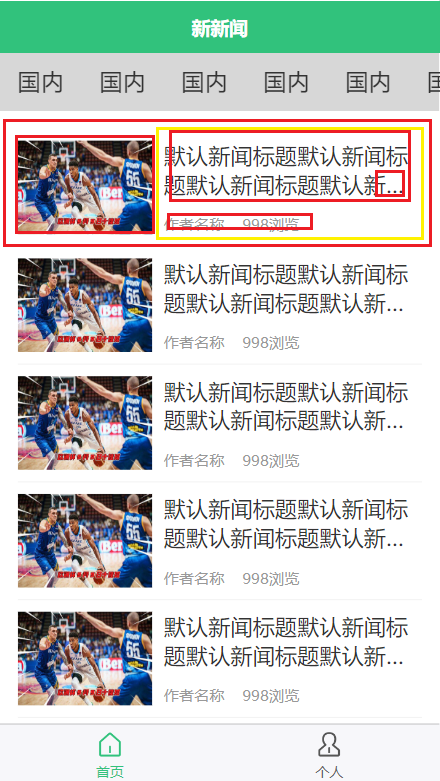
在newsbox.vue编写内容布局及样式(字体改36rpx)
<template>
    <view class="newsbox">
        <!-- 左图 右文 -->
        <view class="pic">
            <image src="../../static/images/0.jpg" mode=""></image>
        </view>
        <!-- 文字又分上面标题,下面作者浏览量 -->
        <view class="text">
        <view class="title">
            <view class="t">
                默认新闻标题默认新闻标题默认新闻标题默认新闻标题默认新闻标题默认新闻标题默认新闻标题
            </view>
        </view>
        <view class="info">
            <text>作者名称</text>
            <text>998浏览</text>
        </view>
        </view>
    </view>
</template>

<script>
    export default {
        name:"newsbox",
        data() {
            return {

            };
        }
    }
</script>

<style lang="scss">
.newsbox{
    // 显示一行
    display: flex;
    // 图片样式
    .pic{
        width: 230rpx;
        height: 160rpx;
        image{
            width:100%;
            height: 100%;
        }
    }
    // 文字样式 有上下结构
    .text{
        border: 1rpx solid red;
        // 自动把剩下的填满
        flex:1;
        padding-left: 20rpx;
        display: flex;
        flex-direction: column;
        // 弹性项目以均匀的间距放置在项目被推到开始和最后一个项目被推到结束的地方
        justify-content: space-between;

        .title{
            font-size: 38rpx;
            color: #333;
            .t{
                // 这边给标题文字两行显示省略号处理
                text-overflow: -o-ellipsis-lastine;
                overflow: hidden;                            //溢出内容隐藏
                text-overflow: ellipsis;                    //文本溢出部分用省略号表示
                display: -webkit-box;                        //特别显示模式
                -webkit-line-clamp: 2;                        //行数
                line-clamp: 2;
                -webkit-box-orient:vertical;                //盒子中内容竖屏排列
            }
        }
        .info{
            font-size: 26rpx;
            color: #999;
            text{
                // jianju间距
                padding-right: 30rpx;
            }
        }
    }
}
</style>
4、布局个人中心页面定义组件默认值
4.1、在newsbox组件写插值语法,
newsbox.vue
<template>
    <view class="newsbox">
        <!-- 左图 右文 -->
        <view class="pic">
            <image :src="item.picture" mode="aspectFill"></image>
        </view>
        <!-- 文字又分上面标题,下面作者浏览量 -->
        <view class="text">
        <view class="title">
            <view class="t">
                {{item.title}}
            </view>
        </view>
        <view class="info">
            <text>{{item.author}}</text>
            <text>{{item.hits}}浏览</text>
        </view>
        </view>
    </view>
</template>

<script>
    export default {
        name:"newsbox",
        // 接受组件,然后是一个对象,
        props:{
            // 定义一个对象
            item:{
                type:Object,
                default(){
                    return{
                        title:"组件内默认标题",
                        author:"张小三",
                        hits:688,
                        picture:"../../static/images/nopic.jpg"
                    }
                }
            }
        },
        data() {
            return {

            };
        }
    }
</script>

<style lang="scss">
.newsbox{
    // 显示一行
    display: flex;
    // 图片样式
    .pic{
        width: 230rpx;
        height: 160rpx;
        image{
            width:100%;
            height: 100%;
        }
    }
    // 文字样式 有上下结构
    .text{
        // border: 1rpx solid red;
        // 自动把剩下的填满
        flex:1;
        padding-left: 20rpx;
        display: flex;
        flex-direction: column;
        // 弹性项目以均匀的间距放置在项目被推到开始和最后一个项目被推到结束的地方
        justify-content: space-between;

        .title{
            font-size: 36rpx;
            color: #333;
            .t{
                // 这边给标题文字两行显示省略号处理
                text-overflow: -o-ellipsis-lastine;
                overflow: hidden;                            //溢出内容隐藏
                text-overflow: ellipsis;                    //文本溢出部分用省略号表示
                display: -webkit-box;                        //特别显示模式
                -webkit-line-clamp: 2;                        //行数
                line-clamp: 2;
                -webkit-box-orient:vertical;                //盒子中内容竖屏排列
            }
        }
        .info{
            font-size: 26rpx;
            color: #999;
            text{
                // jianju间距
                padding-right: 30rpx;
            }
        }
    }
}
</style>
个人中心页面user.vue
<template>
    <view class="user">
        <div class="top">
            <image src="../../static/images/history.png"></image>
            <div class="text">浏览记录</div>
        </div>
    <!-- 内容 -->
    <view class="content">
        <div class="row" v-for="item in 10">
            <newsbox></newsbox>
        </div>
    </view>
    </view>
</template>

<script>
    export default {
        data() {
            return {

            };
        }
    }
</script>

<style lang="scss">
.user{
    .top{

        padding: 20px 0;
        background: #F8F8F8;
        color: #666;
        display: flex;
        flex-direction: column;
        justify-content: center;
        align-items: center;
        image{
            width: 150rpx;
            height: 150rpx;
        }
        .text{
            font-size: 38rpx;
            padding: 20rpx;
        }
    }
}
.content{
        padding: 30rpx;
        .row{
            border-bottom: 1rpx solid #efefef;
            padding: 20rpx 0;
        }
    }
</style>
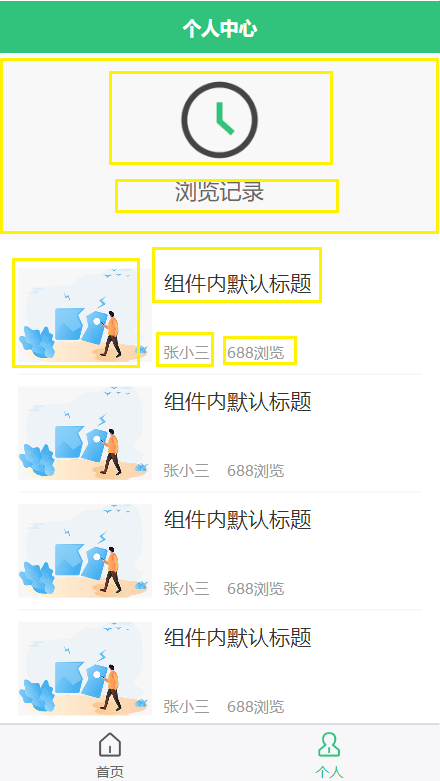
5、根据不同条件渲染组件差异化
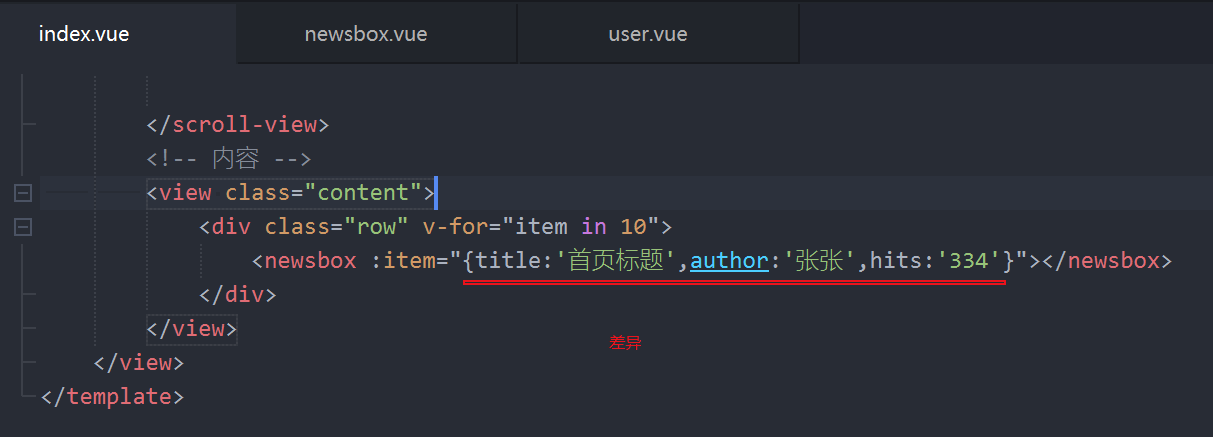
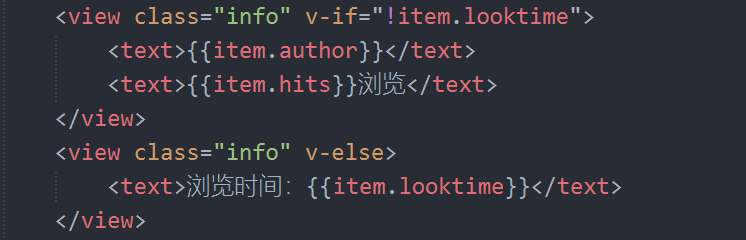
5.1、首页在文字下方是浏览量,个人中心浏览历史文字下方是发布时间
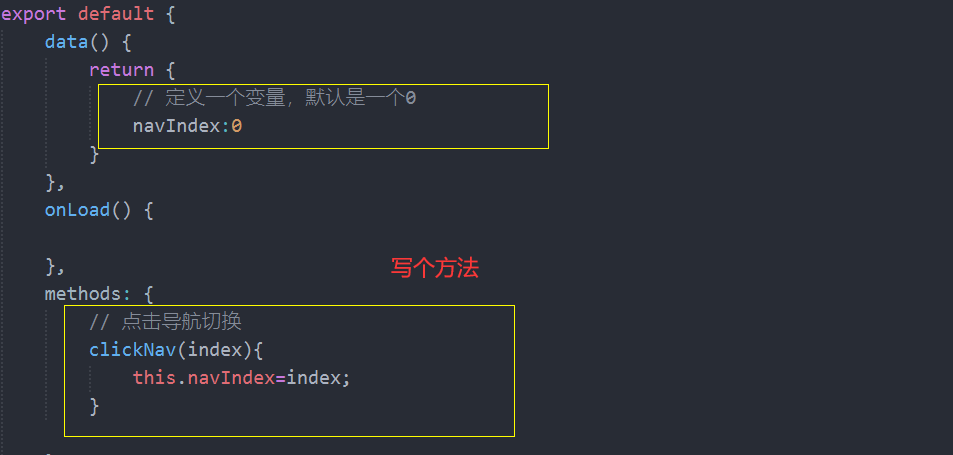
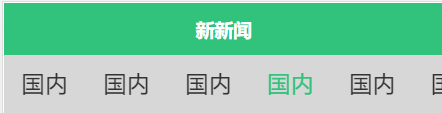
6、点击导航显示高亮
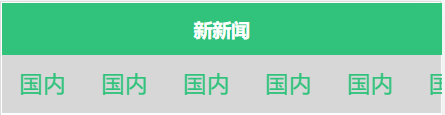
做判断,什么时候需要显示高亮
<view class="item active" v-for="item in 8">国内</view>
更改后:

7、详情布局,将原生事件绑定到组件中
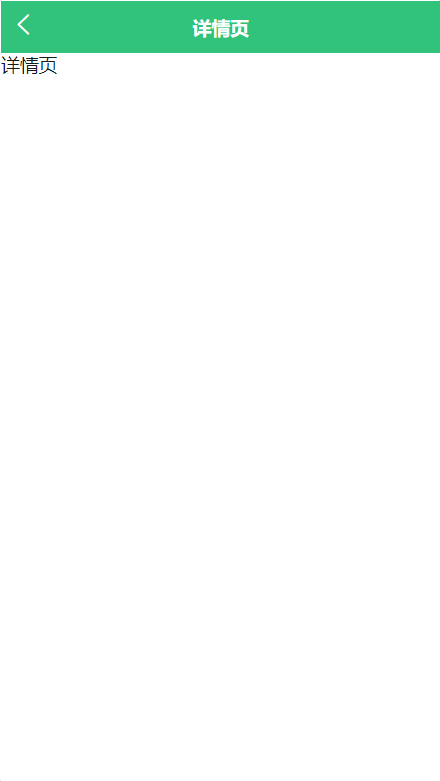
7.1、新建一个详情页detail.vue
user.vue 和index.vue

<newsbox @click.native="goDetail"></newsbox>

        // 跳转到详情页
            goDetail(){
                uni.navigateTo({
                    url:"../detail/detail"
                })
            }
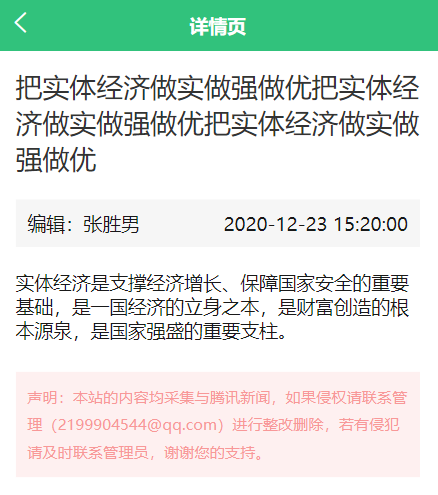
7.2、接下来布局详情页
首先一个框架
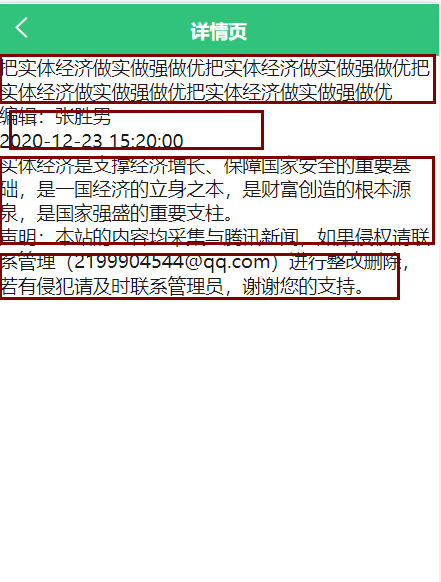
添加样式后:
<template>
    <view class="detail">
        <view class="title">把实体经济做实做强做优把实体经济做实做强做优把实体经济做实做强做优</view>
        <view class="info">
            <view class="author">编辑:张胜男</view>
            <view class="time">2020-12-23 15:20:00</view>
        </view>
        <view class="content">
            实体经济是支撑经济增长、保障国家安全的重要基础,是一国经济的立身之本,是财富创造的根本源泉,是国家强盛的重要支柱。

        </view>
        <view class="desscription">
            声明:本站的内容均采集与腾讯新闻,如果侵权请联系管理(2199904544@qq.com)进行整改删除,若有侵犯请及时联系管理员,谢谢您的支持。
        </view>
    </view>
</template>

<script>
    export default {
        data() {
            return {

            };
        }
    }
</script>

<style lang="scss">
.detail{
    padding: 30rpx;
    .title{
        font-size:46rpx;
        color: #333;
        }
        // 编辑区域
        .info{
            background: #F6F6F6;
            padding: 20rpx ;
            display: flex;
            justify-content: space-between;
            margin: 40rpx 0;
        }
        .content{
            padding-bottom: 50rpx;
        }
        .desscription{
            background: #fef0f0;
            font-size: 26rpx;
            padding: 20rpx;
            color: #f89898;
            line-height: 1.8em;
        }
}
</style>
二、数据交互
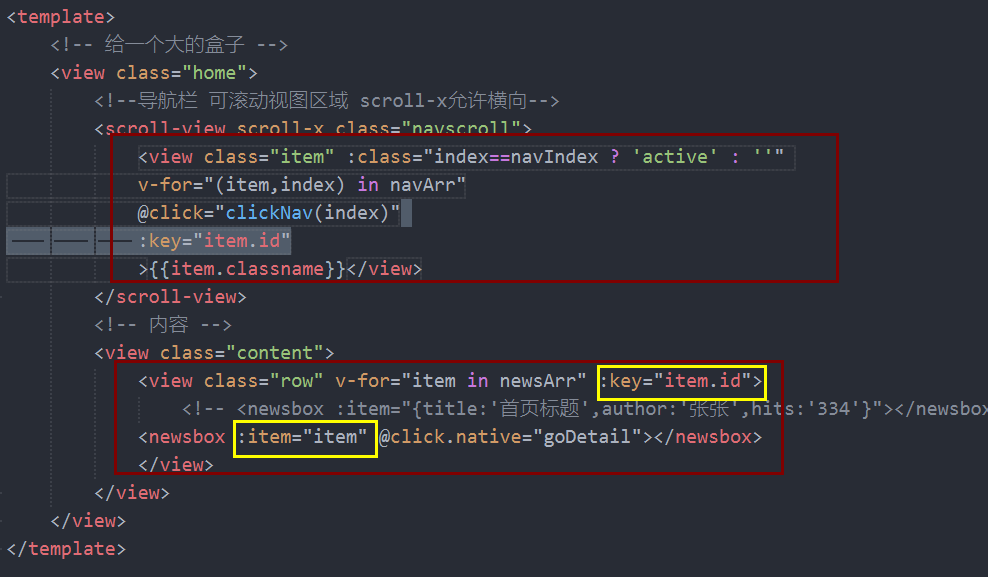
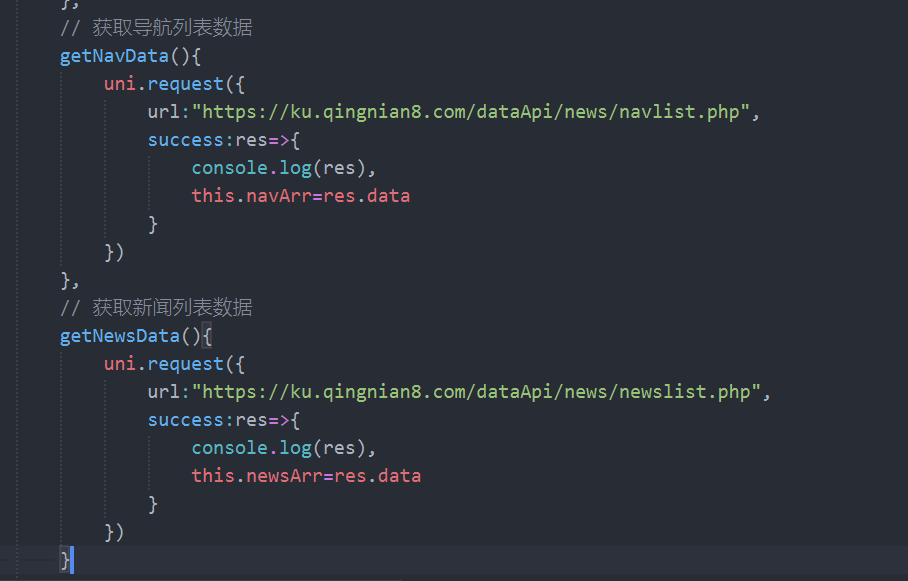
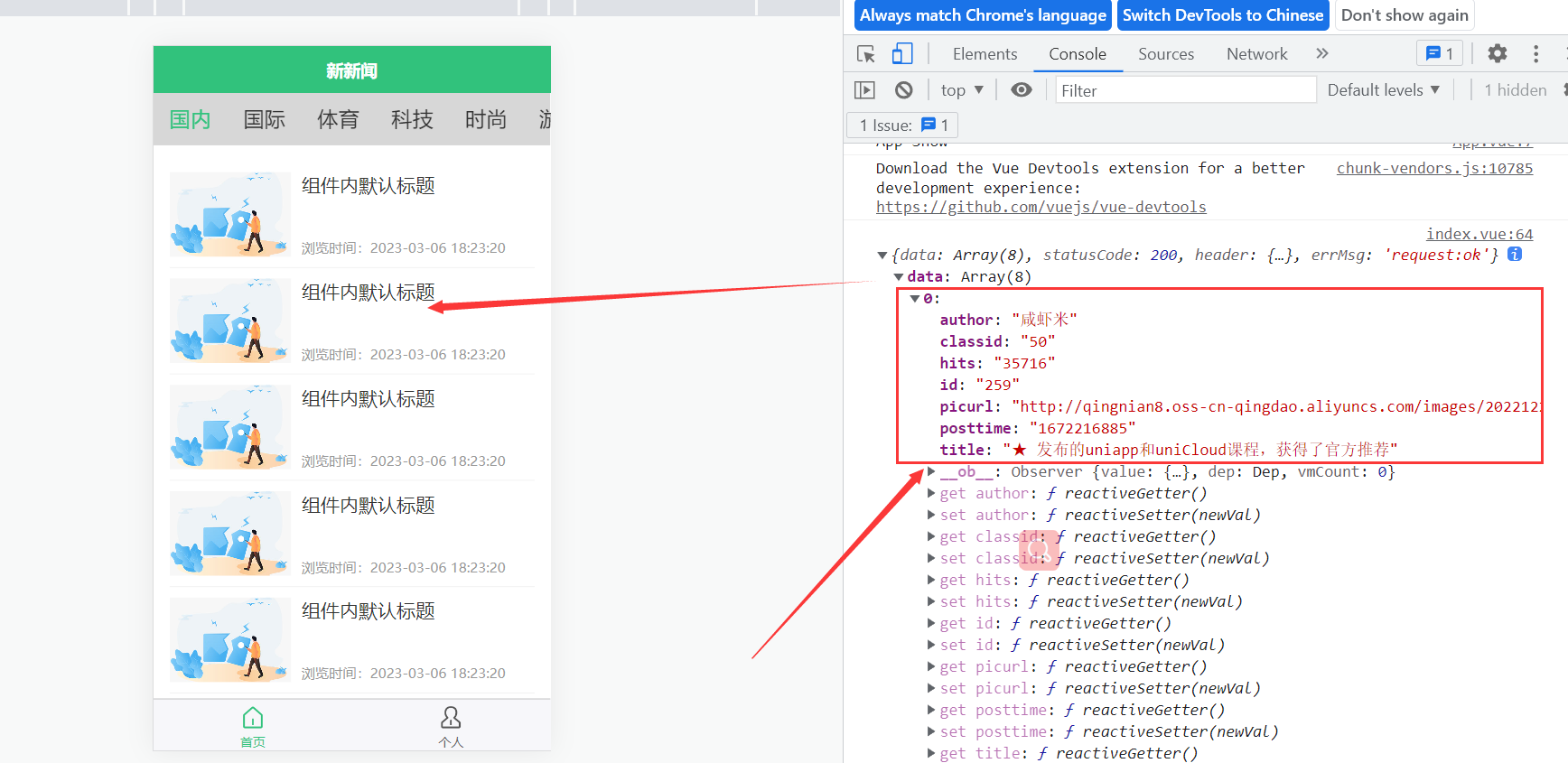
2.1、首页接口

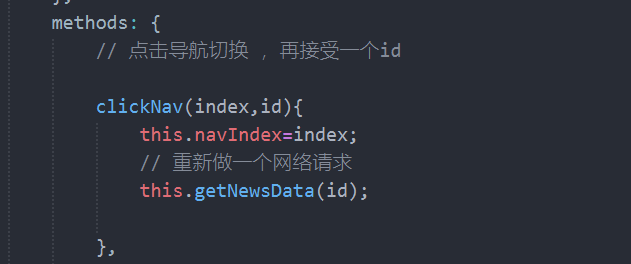
2.2、导航内容切换
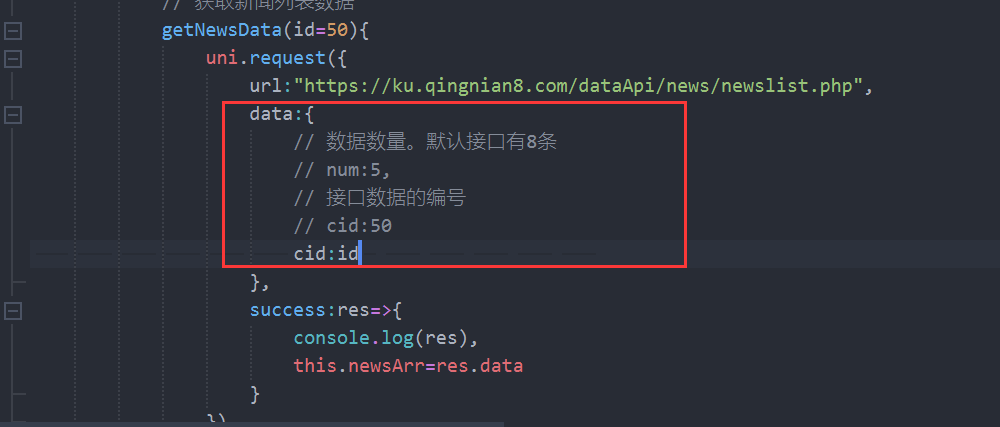
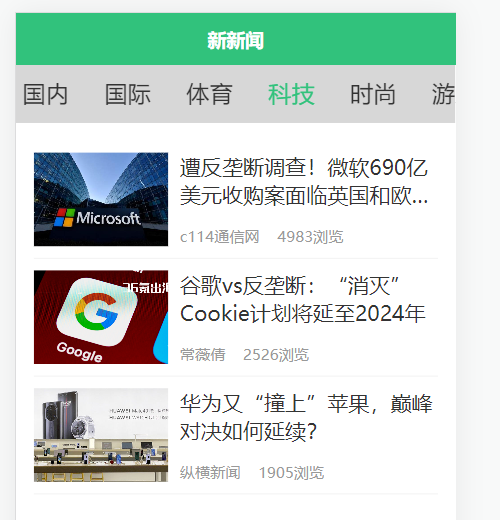
根据cid可以切换

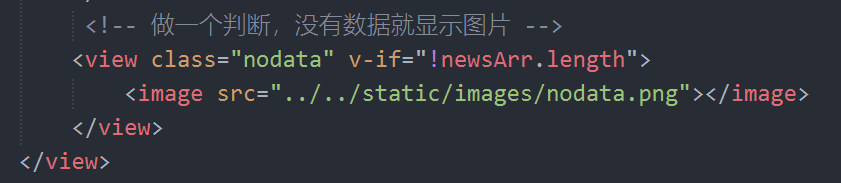
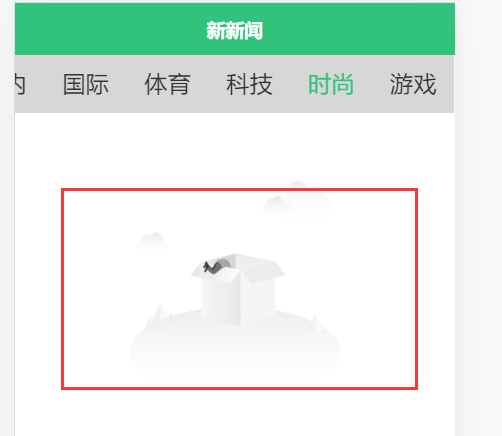
2.3、做一个判断
导航没有数据的时候就显示